BookmarkLane saves website links in a library on your iPhone or iPad. Organize them with folders, tags and favorites, and turn on iCloud sync if you want to use the library across devices. You can start saving links without connecting a browser or enabling iCloud. BookmarkLane requires iOS or iPadOS 26 or later.
Free and Pro
Free saves up to 500 active bookmarks on each device. Trash does not use this allowance. Check your usage in Settings → Plan. Pro adds unlimited bookmarks and optional private iCloud sync, with one subscription for Mac, iPhone and iPad.
In Settings → Plan, choose Subscribe for [price]/month to review Apple's purchase confirmation. The app displays your App Store price and currency. Use Restore Purchases with the Apple Account that bought Pro, and Manage Subscription to manage or cancel it. A pending purchase unlocks Pro only after Apple confirms it. If pricing cannot load, use Try Again; you can keep using Free.
At the Free limit, existing bookmarks remain available to open, edit, organize and export. Adding links, importing, saving an Inbox batch, restoring from Trash or replacing the library from a backup cannot grow the active library beyond its allowance. A rejected batch leaves the library unchanged. Move unneeded bookmarks to Trash to free space, or upgrade before retrying.
If Pro expires, your existing library is kept even if it exceeds 500 bookmarks. You can still edit and export it, but cannot increase its size until you renew Pro or bring it below the Free limit. iCloud sync pauses; the local and iCloud copies are kept. Your Sync with iCloud choice stays on while paused, so renewing Pro resumes it. Turn that switch off to prevent automatic resumption or before restoring/resetting the library; you can turn it off without Pro.
Start with your first bookmark
- Open BookmarkLane, then choose All Bookmarks on the main navigation screen.
- Tap Add Bookmark in the empty library, or open the library's More (…) → Add Bookmark.
- Enter a website address. If you enter just a domain, such as
example.com, BookmarkLane uses HTTPS. - Optionally enter a title, choose a folder and choose or add tags.
- Tap Save. If you leave the title blank, BookmarkLane uses the website hostname.
Only HTTP and HTTPS website links are supported. Saving locally works offline; opening a website or fetching its details needs a connection.
If the URL is already in your library, the form shows the existing bookmark. Tap Show Bookmark to find it without creating a copy. If you choose a different folder, you may see Move Bookmark. This moves the existing bookmark and keeps its other saved details. To change its title, notes or tags, open that bookmark's Edit… action.
Tap Cancel to leave without saving the draft. After a change, you can use Undo when it appears. Use it promptly: another action or a change arriving through iCloud can replace or invalidate it. Undo does not keep a permanent history of changes.
Save from another app
- In Safari or another app, open the page's system Share sheet.
- Choose BookmarkLane. If you do not see it, check the Share sheet's additional apps. Edit the app list and enable BookmarkLane if it is available there.
- Review the website link and select a folder, or choose Create a New Folder.
- Tap Save to return to the source app.
- Open or return to BookmarkLane so the app can add the queued bookmark to your library. Tap Show in the shared-bookmark notice to find it.
If the link is a duplicate, you will see Already saved before you save. Choosing another folder moves the existing bookmark instead of creating a copy. Saves from the Share sheet are stored on this device first. When sync is enabled, the main BookmarkLane app sends them to iCloud afterward. You can save from the Share sheet while offline.
The Share sheet queues the request; the main app checks the current library and plan when processing it. If a new link would exceed the Free allowance, the request stays queued. Free space or activate Pro in Settings → Plan, then retry from the shared-import notice. The extension's duplicate and folder choices reflect the last shared library snapshot, so open BookmarkLane if they seem out of date.
If BookmarkLane never appears in the Share sheet, check its additional apps list and make sure you have the latest available version of BookmarkLane. Try an ordinary HTTP(S) page. Some apps share text or unsupported content instead of a usable website link.
Find your way around
On iPhone, the back button returns from a collection to the BookmarkLane navigation screen. On a wider iPad, navigation and the library can appear side by side.
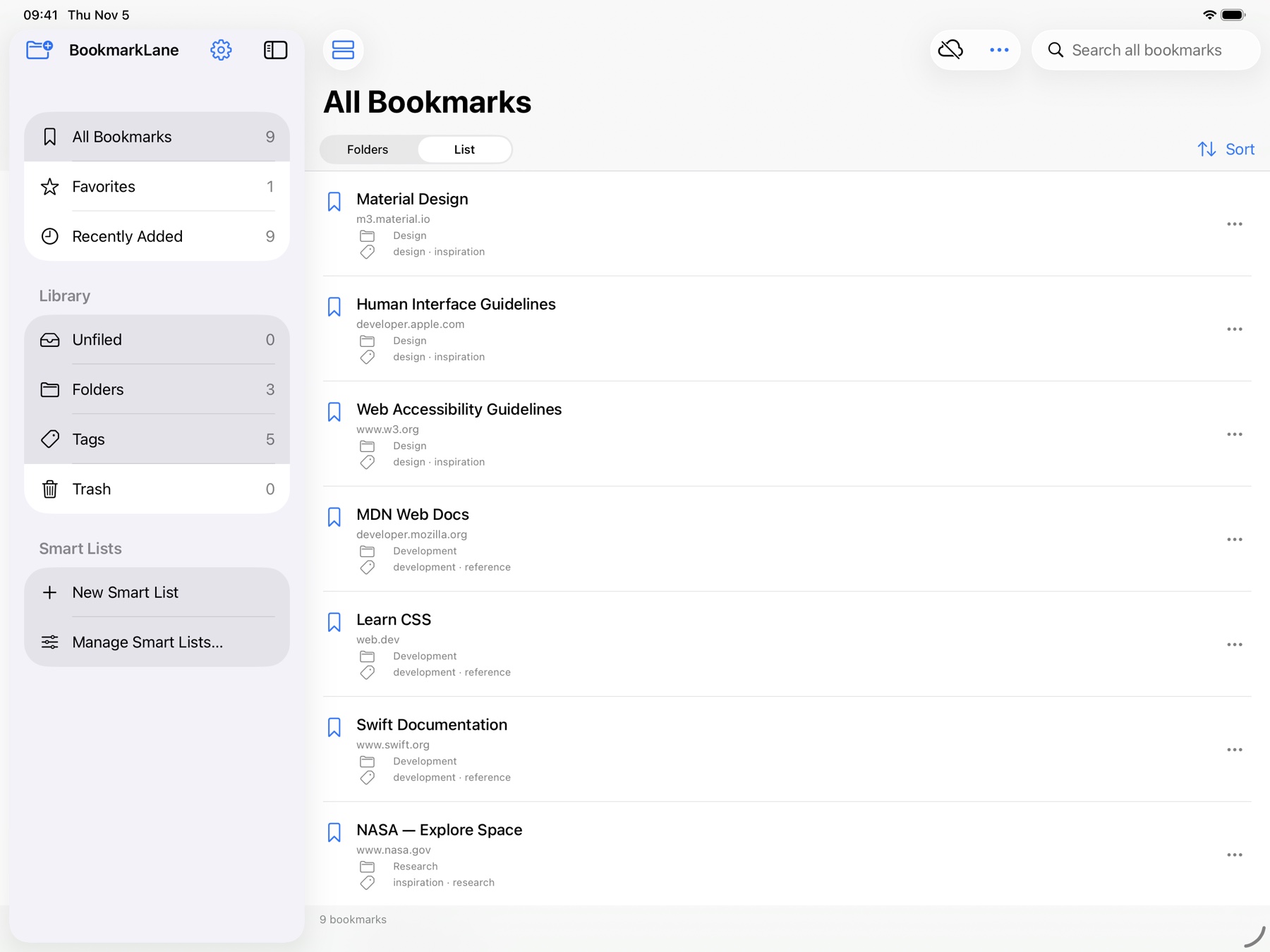
| Collection | What it shows |
|---|---|
| All Bookmarks | Your active saved library |
| Favorites | Bookmarks marked as favorites |
| Recently Added | Active bookmarks ordered by when they were added |
| Unfiled | Bookmarks with no BookmarkLane folder |
| Folders | A searchable list of your folders |
| Tags | A searchable list of your tags |
| Trash | Removed bookmarks that can still be restored |
| Smart Lists | Your saved filters on this device |
| Browsers, when present | Saved browser sources, including their imported folders and profiles |
Editing a bookmark does not change when it was added. Favorites, Recently Added and Smart Lists do not include bookmarks in Trash.
Use the toolbar's Go to Collection… button to search built-in collections, folders, tags and Smart Lists. Tap a result to open it. Full paths help distinguish folders with the same name. Switching collections clears the previous search and selection.
Search, view and sort
Tap the search field to search by title, website, folder, tag or source. Check the field's prompt to see where you are searching. Search Favorites, Search Recently Added, Search this Smart List and Search Trash search only their respective collections. Search all bookmarks searches your active saved library, even if you started in a browser, folder or tag view. Clear the search to browse normally again. To find a result in the folder tree, use its Reveal action.
Saved notes are not included in the current search. Use titles and tags for words you want to find later.
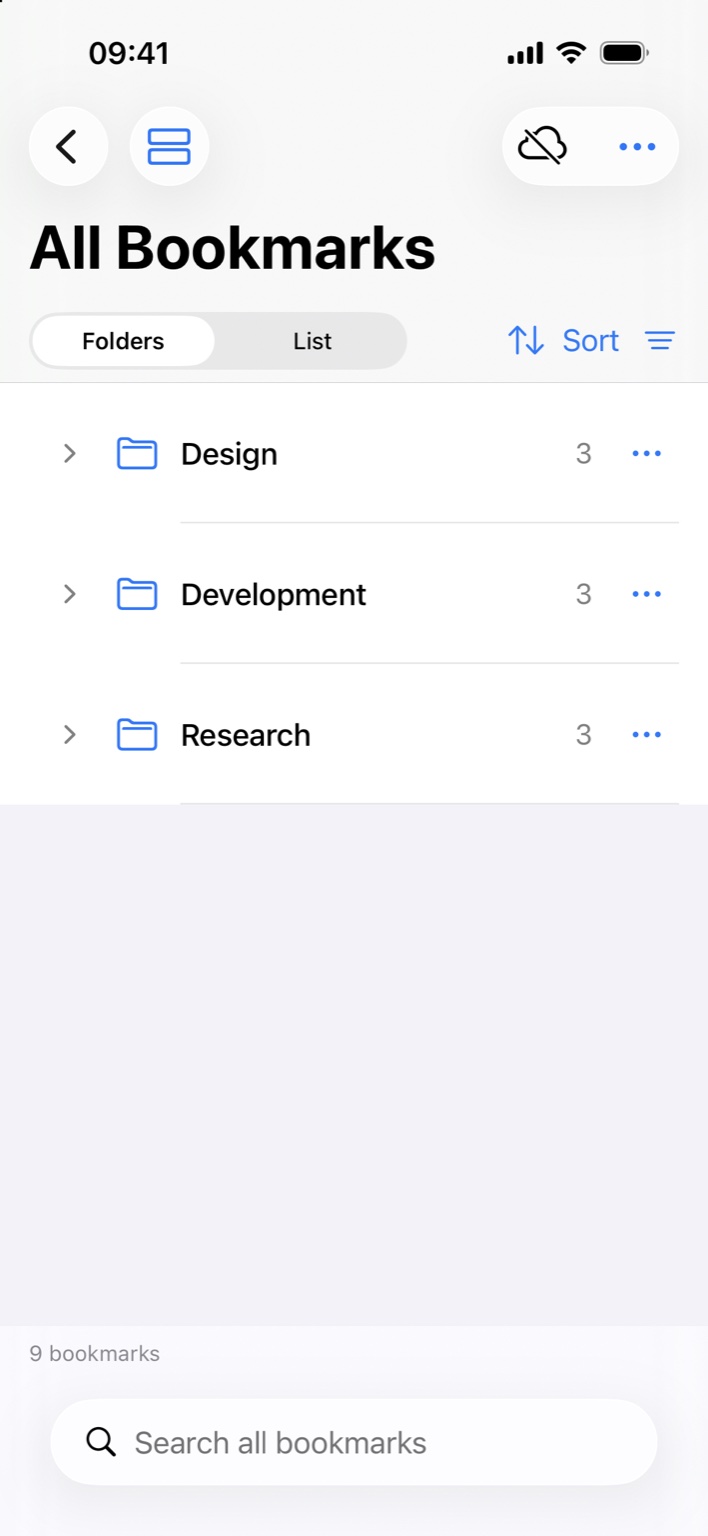
In All Bookmarks, choose Folders to browse the folder hierarchy or List to see a flat list. Expand a folder row to see its contents, or use Expand All and Collapse All under Folder display. Folders can remain in your library even when they are empty.
Large libraries load bookmark rows in groups. Tap Show Next … Bookmarks when it appears to load more. You may see fewer rows than the total saved count because some have not loaded yet; the remaining bookmarks are still saved.
The Sort menu offers:
- Manual (Drag and Drop)
- Alphabetically
- Date Added — Newest First
- Date Added — Oldest First
- Date Modified — Newest First
Choose Manual to arrange items by dragging. Drop a bookmark into a folder to move it there, or into Unfiled to remove it from its folder. If dragging on the touchscreen is difficult, use the folder editor. You can also drag one folder into another to nest it. A folder cannot contain itself.
Open, inspect and edit a bookmark
Tap a bookmark to open its website as you would any other link on your device. Tap the row's … button, or long-press the row, to find Details…, Edit…, Organize…, sharing and Trash actions. You can also swipe a row for Edit and Trash.
Details… shows the full link, how the bookmark is organized and where it came from. Technical source information starts collapsed. Use Edit… to change the title, URL, notes, favorite status, folder or tags. Tap Save to keep your changes or Cancel to discard the draft.
Changes affect your BookmarkLane copy. Browser collections may continue to show the source browser's original title and URL; All Bookmarks, folders, tags and global search use your saved edits. A bookmark missing from a later browser import can remain saved locally.
Optional page details
In Add, Edit or Details, tap Fetch Page Details to request a preview of an HTTPS page directly from the website. The preview may include a title, description and image. Pages that require a login or depend on JavaScript may not provide useful details. In Add or Edit, Use Page Title copies the suggested title into your draft. You still need to tap Save to keep it. Fetching details alone does not change the bookmark.
Use Refresh to fetch again or Remove Saved Details to clear this device's preview. Preview caches do not sync and are excluded from backups.
Organize folders and tags
Choose New Folder in main navigation, on the Folders screen or in the library's More menu. Enter a name, choose a parent folder or Top Level, then save. While adding or editing a bookmark, you can also choose Create a New Folder. The new folder is selected for that draft.
Open a folder's actions and choose Edit Folder… or Rename or Move…, depending on the view. To move the folder, choose a different parent. Delete Folder… removes the folder and its subfolders, but keeps their bookmarks in Unfiled. Check the folder named in the confirmation before proceeding. Use Undo promptly if you need to reverse the change.
Use tags to group a bookmark under several topics. While adding or editing a bookmark, tap Choose tags, search your existing tags and tap Done when finished. Cancel discards the tag-selection draft. If you enter a new tag, it is created when you save the operation containing that field. To delete a tag, open Tags and use the tag's actions or long-press it for Delete Tag…. This removes the tag from active bookmarks and Trash. The bookmarks and their other tags remain. Undo can restore the deleted tag and its assignments.
Change several bookmarks together
- Open a collection or search result and choose More → Select.
- Select individual bookmarks or choose Select All for the entire result set, including items beyond the currently loaded rows.
- Choose Organize.
- For the folder, use Keep Current, Unfiled, or a destination folder.
- Use Add Tags and Remove Tags, and optionally enter a new tag.
- Choose Apply. Cancel discards the draft.
Tags you did not add or remove stay assigned. When Undo is available for the batch, one Undo reverses the whole change. Tap Done Selecting to leave selection mode.
Smart Lists
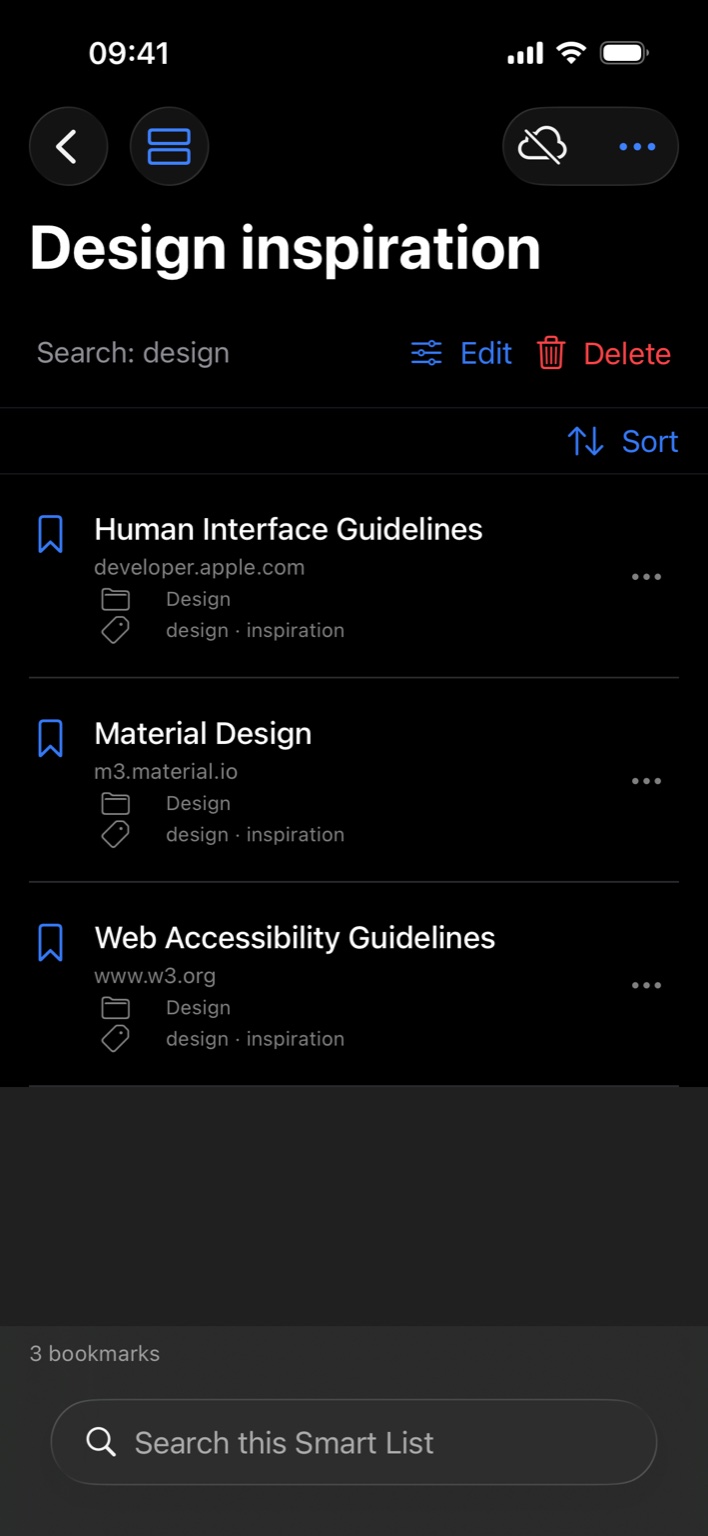
Choose New Smart List in main navigation or More, then give the list a unique name. You can set rules for search text, favorites, a folder and its subfolders, one tag, a browser source and when bookmarks were added. With Match All, a bookmark must meet every enabled rule to appear. Choose how to order the results, then tap Save.
For example, name a list “Reading this month”, select a Reading folder and Last 30 days, and choose newest first. The list updates as bookmarks start or stop matching these rules. The bookmarks stay in their existing folders.
To edit or delete a list, use Manage Smart Lists…, long-press the list, or use its header while the list is open. Deleting a Smart List keeps all bookmarks and tags. When available, Undo Delete Smart List restores the most recently deleted list definition from the current session. If a rule refers to a missing folder or tag, the list has no matches until you edit the rule or restore the missing folder or tag.
You can save up to 64 Smart Lists on each device. They are excluded from library backups and do not sync through iCloud. If you want the same lists on your Mac, create them there separately.
Collect several links in Link Inbox
- Open More → Link Inbox in the library.
- Enter one website address per line, then choose Add to Inbox. You can also use Paste or drop links or text onto Inbox.
- Review links, edit a row's title or URL, and deselect entries to keep for later.
- Choose a folder and tags, then Save N Links.
Inbox skips repeated URLs in your input. Links marked Already saved · skipped cannot be selected, and they leave the existing bookmarks unchanged. Drafts you leave unselected, including already-saved links, stay in the queue until you remove them.
When available for a batch, Undo Save reverses the save and returns the drafts to Inbox. This device keeps up to 500 queued links when you close and reopen the app. Text you type is kept only after you choose Add to Inbox. Unsaved Inbox drafts do not sync and are excluded from backups and HTML export. Save important drafts into your library.
Import a browser export
On iOS, BookmarkLane cannot read another browser app's private bookmark storage directly. Export your bookmarks as a UTF-8 file in Netscape bookmarks format, with an .html or .htm extension. An ordinary saved web page will not work. If Safari provides a ZIP file, extract it in Files and select Bookmarks.html. BookmarkLane cannot extract ZIPs.
In the library, choose More → Import Bookmarks → From [browser]…. You can choose Safari, Chrome, Firefox, Brave or Edge. Read the export instructions for that browser, tap Choose Exported File…, select the HTML file in Files and confirm Import Bookmarks. You can do this even if you have not saved any bookmarks from that browser yet. An import saves a copy of the file's bookmarks. To update that copy, import again.
If the source already appears under Browsers, choose its More → Import from [browser]… action to open the same browser-specific guide. iOS imports only the file you select; it cannot connect to the browser's private data folder.
Review duplicates
Open More → Find Duplicates to review matching bookmarks. Groups under Ready have compatible details. Choose Merge All Ready… to preview the counts, exclude any groups you want to keep separate, then confirm. For groups under Needs a choice, review each group and choose which conflicting title, notes or folder to keep.
Merging combines compatible tags and favorites and keeps the browser attribution. It changes your BookmarkLane library and leaves browser files untouched. Use Undo Batch Merge when available to reverse the batch. Folder matches have a separate review; check their merge preview before confirming.
Share links or export your library
Open a bookmark's actions or Details to use Share…, Copy Link, Copy as Markdown or Copy BookmarkLane Link. A BookmarkLane link finds the record inside the app on a device that already has it. The link does not transfer the bookmark or automatically open its website.
To share several bookmarks, choose More → Select, select the bookmarks, then choose Share → Share Selected Links…. Review your selection and open the system share menu. Copy as Markdown copies the links as a bullet list. You can share or copy up to 500 selected bookmarks at once.
To create a file you can import into a browser, choose Settings → Export → Export Bookmarks… and save it to Files. The HTML file includes active saved bookmarks in their current folders, including nested folders and empty ones. It excludes Trash, notes, tags and browser import history. Use a library backup if you need to keep those details.
Settings reference
Tap the Settings gear in main navigation, or choose More → Settings in the library. In compact layouts, look under More for additional settings tabs. Tap Done to return.
| Tab/control | Use |
|---|---|
| General → Appearance → System / Light / Dark | Follow your device's theme or choose a theme for the app. Your choice is saved on this device. |
| General → Announcements | Read product news, refresh the feed and mark messages as read on this device |
| General → Show website icons | Off by default. When enabled, the app can fetch a website's icon after you open its bookmark from BookmarkLane. Browsing or searching alone does not download icons. Turn the setting off to hide icons. |
| Plan → Subscribe / Restore Purchases / Manage Subscription | Check usage, activate Pro or manage the App Store subscription |
| iCloud → Sync with iCloud | Requires Pro. Read the merge confirmation before enabling it. |
| iCloud → Sync Now | Check or retry sync when it is enabled. Review the status and Last checked. |
| iCloud → Use This iCloud Account…, when offered | Confirm a merge after changing iCloud accounts. Choose this only if the new account is the one you intend to use. |
| Siri → Open Shortcuts | Find BookmarkLane's actions in Shortcuts |
| Siri → Find Duplicates… | Open the same duplicate review |
| Siri → Set up Siri | Read instructions for setting up Siri on your device |
| Siri → Apple Intelligence on this device / Check Again | Check availability. This check does not turn on Siri or Apple Intelligence. |
| Export → Export Bookmarks… | Save browser-compatible HTML |
| Backup → Back Up Library… | Save a JSON copy with bookmarks, Trash, folders, tags and import history |
| Restore → Choose Backup… | Preview a BookmarkLane JSON backup before replacing the current local library |
| Reset → Reset Library… | Confirm removal of the whole local library; recovery needs a backup |
Use iCloud across devices
iCloud sync requires BookmarkLane Pro. Free includes up to 500 active bookmarks per device, saved locally. Subscribe or restore your purchase in Settings → Plan.
Open BookmarkLane on the devices you want to sync, using the intended iCloud account. On each device, open Settings → iCloud, turn on Sync with iCloud and review the merge confirmation. Keep both apps open for the first transfer. You can continue using your local library while it syncs.
Sync includes bookmarks, saved edits, folders, tags, notes, favorites and Trash. Browser permissions, Smart Lists, Inbox drafts, preferences, icons and previews stay on each device. You can save bookmarks offline. Reopen the app with an internet connection to let sync catch up. Updates are not guaranteed while the app is quit or iOS has suspended it.
Turning sync off keeps both your local and iCloud libraries. If you change iCloud accounts, sync pauses until you confirm the new account. A library change arriving through sync can invalidate an earlier Undo. Check the iCloud status before assuming a change has reached another device.
Update all syncing devices to the current app before using the latest library format. Older app builds may be unable to read a library uploaded by the updated app.
Announcements
Open the library's Announcements bell or Settings → General → Announcements for news from BookmarkLane. A badge shows unread messages. Use Refresh or Try Again to check for updates, Mark as Read for one message, or Mark All Read for those shown. Opening the reader does not mark messages read automatically.
Announcements are fetched from the BookmarkLane website. When a refresh fails, previously saved messages can remain available; an empty successful feed shows No announcements yet. Some messages are shown only while Pro is active. Read status is saved on this device and does not sync. Read more on our website, when offered, opens the linked page.
Back up, restore or reset
Choose Settings → Backup → Back Up Library… to save a full library backup, then keep the JSON file somewhere safe. HTML export gives you a portable list of links, but leaves out details needed for a complete backup.
Before restoring, back up your current library, turn off iCloud sync and wait for any library work to finish. Choose Restore → Choose Backup… and review the backup's date and counts. Choose Replace Library only when you intend to replace the current local library. BookmarkLane can also read supported older backups. After restoring, you must reconnect browsers on a Mac.
Keep the current app on devices that will restore a newly created backup; older builds may reject its format. Backup files larger than 100 MB are rejected. If a restore would exceed the Free allowance, activate Pro or use a smaller backup; the current library is preserved when the operation fails.
Reset Library removes active bookmarks, Trash, folders, tags and import records, and disconnects browsers. You need a backup to recover from a reset. Both restore and reset leave the browser originals and iCloud copy intact. Turning sync back on can bring the cloud library back to this device. Device preferences, Smart Lists and Inbox drafts are separate from the library.
Trash and recovery
Choose Move to Trash from a bookmark row or the selection controls to remove bookmarks from the active library. You can search for them in Trash. Its More (…) menu has Select, Restore All, Empty Trash… and Settings. Use a row's actions to restore one bookmark, or Select to work with selected bookmarks. Restoring keeps their saved details. If the old folder no longer exists, they return to Unfiled. Moving bookmarks to Trash and restoring them can be reversed with Undo when it is available.
Delete Permanently and Empty Trash… require confirmation and cannot be undone. Check the count and keep a backup first. There is no automatic Trash expiry.
Siri and Shortcuts
Choose Open Shortcuts in Settings → Siri to find BookmarkLane's actions. Save Bookmark takes a URL and lets you supply a title, an existing folder and tags, then saves directly through the app. Get Bookmark URLs passes links to another Shortcut action. You can combine search, folder, tag and favorites filters and set a limit of up to 500 links. Both actions open BookmarkLane to use its current library. Find Duplicate Bookmarks and Organize Bookmark let you review changes before applying them.
With Siri enabled in device Settings, try “Save a bookmark in BookmarkLane” or “Get bookmark links from BookmarkLane”. These actions work without Apple Intelligence. The Apple Intelligence availability card checks a separate capability. If the actions do not appear, make sure BookmarkLane is up to date, then reopen Shortcuts.
Troubleshooting
| Problem | What to check |
|---|---|
| A save, import or restore reaches the Free limit | Check Settings → Plan. Move active bookmarks to Trash or activate Pro, then retry. Queued Share requests are kept. |
| Pro or sync is unavailable | Restore Purchases using the purchasing Apple Account; check Plan and iCloud status. Expired Pro pauses sync while keeping both copies. |
| Announcements will not refresh | Check the connection, use Try Again and read saved messages if available. An empty successful feed is normal. |
| A collection will not open | Return to main navigation and select the collection again, or use Go to Collection…. If it still will not open, check for an app update and contact support. Empty collections can be opened too; do not reset the library to fix navigation. |
| I cannot find Import Bookmarks | Open a library collection, then choose More (…) → Import Bookmarks. The action is available when the library is empty. If it is missing, make sure you have the latest available version of BookmarkLane and contact support. |
| No bookmarks on another device | Check the account and sync status on both devices, keep both apps open, then use Sync Now. If the iCloud library starts empty, you may need to wait for the source device to send its library. |
| A Smart List is empty | Every enabled rule must match. Check the folder and tag rules, favorites and the date window. Clear any search text too. |
| The library looks empty during search | Clear search and return to All Bookmarks. Check Trash and folder expansion. |
| A preview or icon is missing | Check your connection and the relevant setting or action. Some websites do not provide page details or icons in a supported format. You can still use the saved bookmarks. |
| Restore or Reset is disabled | Turn sync off and wait for importing, saving or other library work to finish. |
| A shared link is missing | Open BookmarkLane so it can process queued saves. Use Retry if the shared-import notice reports a failure. |
| A save says the link already exists | Use Show Bookmark to find the existing bookmark, or move it to another folder. Edit it to change its other details. |